How to integrate Doordash to Localyser
This guide provides step-by-step instructions on how to integrate DoorDash with Localyser to streamline reviews management.
Instructions
- Navigate to Settings > Other > Third-Party Login
- Scroll down to the bottom of the page and select the Add New button.
- From the dropdown menu, pick DoorDash as the platform.
Fill in the required details:
- Add your Doordash merchant email account.
- Open an incognito browser.
- Go to your merchant Doordash portal and log in to your account.
- Right-click and select "Inspect."
- Select Application > Cookies > merchant.portal.
- Copy the
portal.web-sidand make sure you close the incognito browser without logging out of DoorDash. - Paste the
portal.web-sidinto Localyser. - Add the business ID, which you can find in the URL when opening the DoorDash merchant portal (parent profile).
- Add the PortalWebID.
- Click on Save to add the Doordash account.
Once the merchant account is added in the 3rd party login, follow these steps:
- Go to Settings > Locations.
- For each location click on the edit button (pen icon).
- Include the public URLs corresponding to each store, which clients will view.
- Provide the unique store IDs for each of your locations. Accessible within your merchant account after selecting a specific store, you can find it in the URL.
- You can share this information with us via email at [email address] / [email protected] and we will add them to your account on Localyser.
After adding the account and URLs, it usually takes up to 24 hours for the reviews to start showing.
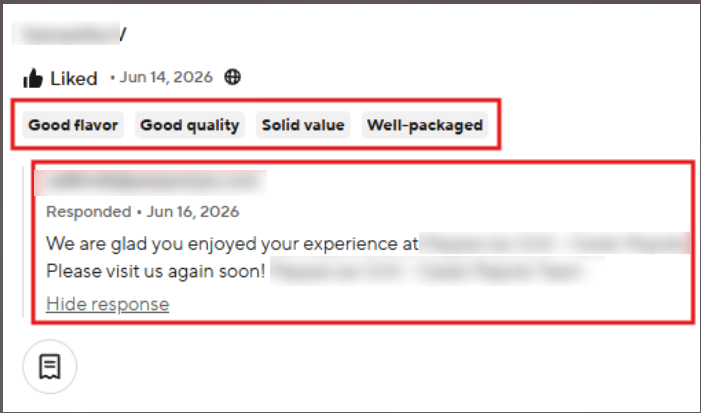
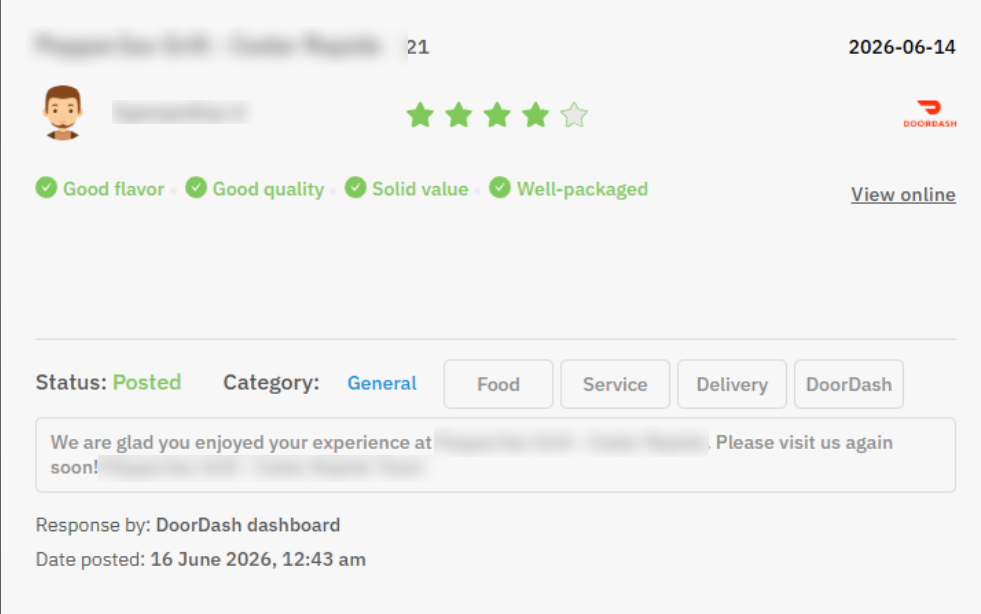
📊 What Data is Synced? Our DoorDash integration pulls detailed review insights into Localyser to help you understand customer satisfaction at a glance. Synced data includes:
- The customer's star rating and text review (if available)
- What the customer liked or didn't like about their order (tags)
- Responses previously made directly on the DoorDash dashboard
(Below is how the tags and merchant response appear in the DoorDash dashboard)
(Below is how this data is seamlessly displayed inside your Localyser Reviews Page)
By following these steps, you can automate the process of managing DoorDash reviews within Localyser, streamlining the overall review management experience.