Campaigns is Localyser's built-in customer CRM: one place that lists every customer who has interacted with your business, with their contact details, ratings, reviews, tickets, orders and feedback.
Instead of looking up a customer across reviews, customer care and feedback separately, you can open their profile and see their full history in one view. Customer records are created and updated automatically from your connected sources, such as feedback forms, reviews, customer care and your POS.
Where to find itIn the left navigation bar, click Campaigns (marked NEW, just below Customer Care), then click Customers.
The page shows the total number of customers under the Customers title, for example "598 customers".
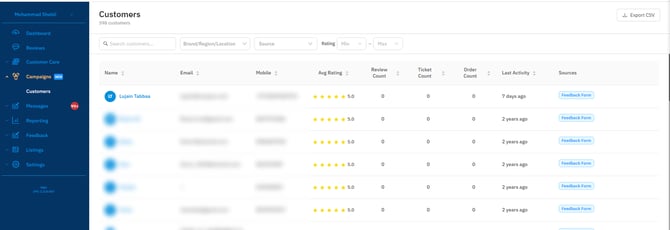
Each row is one customer. Click a column header to sort by it, or click a customer's name to open their profile.
|
Column |
What it shows |
|---|---|
|
Name |
The customer's name. Click it to open their profile. |
|
|
The customer's email address, if known. |
|
Mobile |
The customer's mobile number, if known. |
|
Avg Rating |
The average of all ratings this customer has given you. |
|
Review Count |
How many reviews this customer has left. |
|
Ticket Count |
How many customer care tickets this customer has. |
|
Order Count |
How many orders this customer has placed, from your POS. |
|
Last Activity |
When this customer last interacted with you, for example their latest review. |
|
Sources |
Where this customer's data came from, such as Feedback Form, Google reviews, Customer Care or your POS. |
Use the bar above the list to narrow it down. You can combine filters.
- Search customers: type a customer's name or email.
- Brand/Region/Location: show only customers linked to a specific brand, region or location, for example those who left a review for that location.
- Source: show only customers who came from a specific source: Feedback Form, POS, Customer Care, Recovery Form URL or Chat.
- Rating (Min – Max): show only customers within a rating range. For example, set Min to 1 and Max to 3 to find unhappy customers, or Min and Max to 5 for your biggest fans.

Export to CSV
Click Export CSV in the top-right corner to download the customers you are currently viewing.
The export follows your filters. For example, if you have 500 customers and filter to one location that has 100, the file will contain only those 100 customers.
The customer profileClick a customer's name to open their profile. The left panel shows their key details:
- Email and Mobile
- Data Sources: where their data came from, for example Feedback Form
- First Appearance: the date they first appeared in Localyser
- Average Rating
- Average Transaction: their average order value, from your POS
- Order Frequency: how many orders they place per year
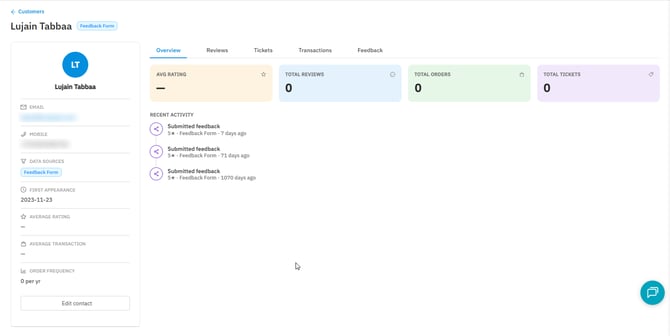
To go back to the full list, click Customers at the top left.
Edit a customer's details
- Click Edit contact at the bottom of the left panel.
- Update the First Name, Last Name, Email or Mobile.
- Click Save, or Cancel to discard your changes.
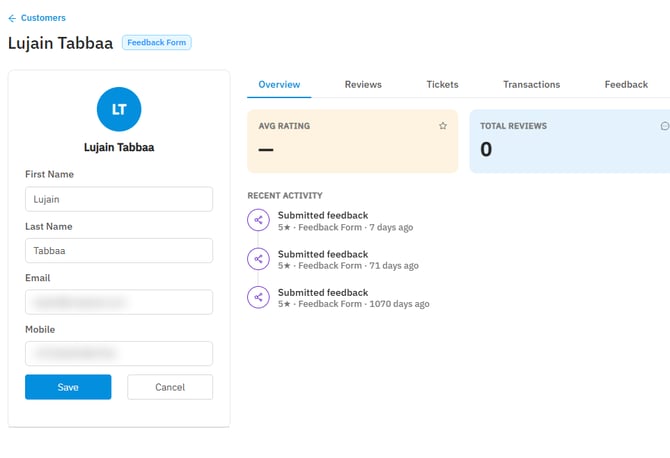
The right side of the profile has five tabs.
Overview
A quick summary of the customer, with four boxes: Avg Rating, Total Reviews, Total Orders and Total Tickets. Ratings from feedback forms are included here too.
Below the boxes, Recent Activity lists the customer's latest actions, such as a submitted feedback form or a reply to a ticket.
Reviews
All of the customer's reviews, from every connected source.
|
Column |
What it shows |
|---|---|
|
Date |
When the review was posted |
|
Source |
Where it was posted |
|
Rating |
The star rating |
|
Excerpt |
The review text |
|
Location |
Which of your locations it was for |
|
Status |
The review's current status |
Tickets
All of the customer's customer care tickets.
|
Column |
What it shows |
|---|---|
|
Ticket ID |
The ticket's reference number |
|
Date |
When the ticket was created |
|
Status |
The ticket's current status |
|
Priority |
The ticket's priority |
|
Assigned Agent |
The team member handling it |
|
Location |
Which location it relates to |
Transactions
All of the customer's orders, from your POS.
|
Column |
What it shows |
|---|---|
|
Date |
When the order was placed |
|
Location |
Where it was placed |
|
Source |
Which system recorded it |
|
Order Value |
The order total |
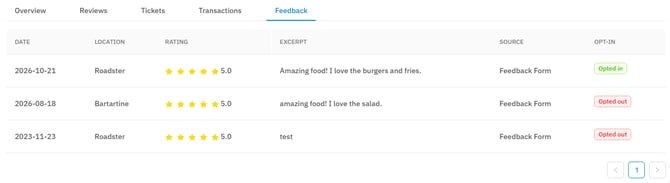
Feedback
All of the customer's responses through Localyser's feedback tool.
|
Column |
What it shows |
|---|---|
|
Date |
When the feedback was submitted |
|
Location |
Which location it was for |
|
Rating |
The star rating |
|
Excerpt |
The feedback text |
|
Source |
Which feedback channel it came from |
|
Opt-in |
Whether the customer chose Opted in or Opted out on the feedback form |
Frequently asked questions
Is Campaigns included in my plan? Campaigns is part of the Premium package. To activate it for your account, contact our support team at support@localyser.com.
Do I need to add customers manually? No. Customers are added and updated automatically from your connected sources. You can edit a customer's name, email and mobile with Edit contact.
Why does a customer show no reviews, orders or tickets? The customer has no activity of that type yet, or it came from a source that isn't connected. For example, the Transactions tab only fills in when your POS is connected.
Does Export CSV download all my customers? It downloads only the customers in your current view. To export everyone, clear all filters first.
Need help? Contact our support team through the chat icon in the bottom-right corner of the platform.